Ready to Get Started with the SRE?

Before accessing UMB’s Secure Research Environment (SRE), you’ll work with the SRE support team to discuss your research needs, confirm project requirements, and set up secure access for your team.

Prepare for your SRE Consultation

Getting started with the SRE begins with a consultation with the SRE IT team. Before your consultation, review the four key steps below to understand what to expect and what information you may need to prepare. Each step is outlined in more detail below.

Email sre-support@umaryland.edu to request an initial consultation. During the consultation, the SRE support team will review your project needs, discuss secure access, and help your team prepare to use the environment successfully. 

During the consultation, the SRE support team will work with you to: 

  • Determine whether SRE Standard or Custom Compute best fits your project.
  • Define business processes and project folder requirements.
  • Discuss the expected project timeline.
  • Identify the project’s key contacts, including the data steward and primary point of contact. 

The information needed to approve access depends on whether your project has an IRB protocol. 

Projects with an IRB protocol: Provide the IRB documentation and/or IRB protocol number requested by the SRE support team. This information will be used to verify who is authorized to access the project data in the SRE. Changes to an IRB protocol do not automatically update SRE project-folder access. Contact sre-support@umaryland.edu when a team member needs to be added or removed so the appropriate access update can be completed. 

Projects without an IRB protocol: If the project does not have an IRB protocol, access to project data requires approval from the project owner and/or the designated data steward. 

All approved members of a research project may use the SRE, including collaborators who are not UMB employees or students. Every SRE user must have an active UMID. 

Non-UMB collaborators typically need a sponsored affiliate account through the UMB Community System before SRE access can be established. Build time for affiliate-account sponsorship into the project timeline. 

Sign in to the SRE

  • desktop computer

    Option A: Desktop Application

    Preferred Access Method

    The desktop app is the preferred way to access the SRE because it provides a better overall user experience, supports multi-monitor workflows, and allows for more personalized configuration. 

    1. Download and install the approved desktop application
    2. Open the application and select the option to sign in or add an account.
    3. Sign in with your approved UMB credentials.
    4. Locate and select the UMB SRE environment, then follow the prompts to connect.   

    UMB SRE access icon

    Image of Secure Research Environment

  • WEB WORLD WITH ARROW

    Option B: Web-based Portal

    Occasional or Quick Access Method

    The web portal is best for occasional SRE use or quick access when you need to connect without installing or configuring the desktop application. 

    1. Open the SRE portal: https://windows.cloud.microsoft/
    2. Sign in with your approved UMB credentials.
    3. Locate and select the UMB SRE environment.
    4. Follow the prompts to complete sign-in. 


    UMB SRE access icon

    Image of Secure Research Environment

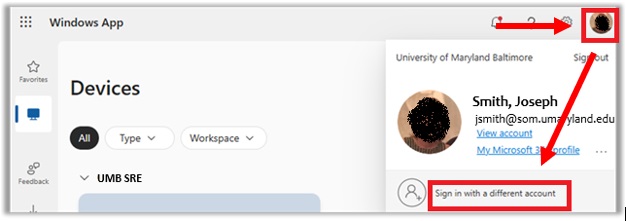
When signing into the SRE, it's necessary for SOM researchers to use the umaryland.edu suffix instead of som.umaryland.edu or ihv.umaryland.edu.  For example, if your regular account is jsmith@som.umaryland.edu, it will be jsmith@umaryland.edu.  (Note: The @umaryland.edu credential is not an email address and cannot be used for sending or receiving email.  It is only for logging in to the SRE.)

Once you've accessed the Windows App or https://windows.cloud.microsoft/:

Screen shot of the SRE sign-in page which shows how SOM researchers need to sign-in using a different account

For more information related to School of Medicine users in the SRE please visit: The School of Medicine's Secure Research Environment Webpage.

Would you like to join the SRE Community?

The SRE Community Microsoft Team provides information, updates, and more about the SRE.  If you would like to join the Team, please submit your request via Join the SRE Community.